

About Us
Haedong Lounge Guide
Haedong Lounge
1. Haedong Lounge (computer-equipped room) Guide
The Haedong Lounge is a 280 sq. yard lounge equipped with 36 PCs located in E3-4 Room #1412.
Computer Specifications and Running OS:
- Intel CPU (Core i7-6700 at 3.4 GHz, 4 cores), NVIDIA GPU (GTX1070)
- 32GB Memory, 1 SSD + 1 SATA Disk, 1 Gbps NIC
- 4K-supported Samsung Monitor, Mouse/Keyboard
- Dual boot OS of Linux (Ubuntu 16.04) and Windows 10
2. Haedong Lounge PC Usage Guidelines
- Haedong Lounge is freely open to any undergraduate student taking computer-required classes, for uses in programming homeworks and individual researches.
- For classes requiring computer uses, please schedule ahead to make an appointment.
- For individual students, please follow the following guidlines to make a computer account.
- The computer account is made at the beginning of each semester for students taking computer-required classes or those who are found eligible.
3. Steps to make a computer account for classes, account removal policy, program set-up guidlines
- For class educational purpose, the class TA should gather up the following student information and e-mail it to staff-haedong@googlegroups.com to make accounts for all students.
- For individual research purpose, each student should contact their advising professor and e-mail the approval/recommendation to staff-haedong@googlegroups.com.
- Accounts used for individual research can only be used per semester, and the account will be deleted at the end of the semester. Before deleting your account, please back up or delete your files.
- Required information to make an account
- Class Title, Name of Professor, TA name and contact information (e-mail address and cell phone number)
- Student department, Student number, Name, E-mail Address and cell phone number (phone number is for emergency purpose in case of security breach)
- Initial password (should be complex enough) – Each student must change the initial passward in Linux by typing the command “passwd.”
- Major Usage Guidlines (e.g.: C programming homeworks, deep-learning practice and projects, etc.)
- Whether you were granted to enter Haedong lounge in the past (courses).
- Warnings
- For students dropping the computer-required classes, the student must request the department to remove their account. (For security measures)
- After the class drop/add period, the class TA must check which students are actually taking the class and request the account removal for students not taking the class. (For security measures)
- Information regarding the computer account
- The account ID is the same as the student number (e.g.: 20170455).
- The account is valid for both Linux and Windows OS, and is valid for all machines in the lounge.
- For the first use, each student must log into Linux and type “passwd” to change the initial password.
- The allowed disk volume is 1GB in each Windows and Linux system.
- The files are not synchronized with other machines. If you make a file in one machine, it will not appear in other machines. (Caution) You must backup your personal data before you leave the machine. The department and staffs are not held responsible for data losses from machine failures and disk malfunctions.
- Account removal policy
- All students accounts along with all personal data will be removed at the end of semester.
- If you feel you should be exempt from the account removal, the student must e-mail staff-haedong@googlegroups.com saying why you should be exempt and wait for the approval.
- Program set-ups for classes
- Only the TA can setup the class-required programs after the approval. (Primitive programs are already setup in all machines)
- If the class requires a specific program not already setup in machines, the TA should e-mail staff-haedong@googlegroups.com for the program setup approval.
- The TA should inform which program he/she intend to setup in the request e-mail.
- After setting up the required programs, the TA must return the setup authorization to staff-haedong@googlegroups.com
4. Classes in Haedong Lounge
- For classes planning PC uses in Haedong Lounge, the TA and/or professor should e-mail staff-haedong@googlegroups.com a week before the planned use to make a reservation.
- If the revervation is approved, the TA should nofify and write the accurate time and date of the PC uses a week~few days before the scheduled class on the board inside the Haedong Lounge.
- The class uses in Haedong Lounge is strictly limited to classes mandating computer uses. If the class does not necessarily madate PC uses please consider other classrooms and allow other students use the PCs they need.
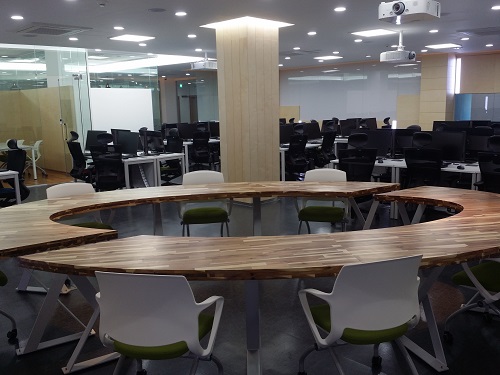
5. Haedong Lounge Management Policy
- Students must come to the Haedong Lounge (no remote access), and must turn-off the PC after uses.
- Remote access using ssh or etc. is strictly limited to the case where other students are using the specific PC one intends to access. Please note that the PC can be shut-down any time if no one is using the PC in person.
- For long-term resource uses such as deep-learning or etc., please leave a memo near the monitor with the user’s contact info. and expected usage time. Otherwise, the PC will be shut-down without notice.
- For uses outside the reported account usage request (security breach or etc.), the professor will be informed and the account will be removed. (e.g.: hacking, un-necessary resource uses, gaming, P2P file-sharing, using too easy password or using the intial password, or etc.)
- You can enter the Lounge with your student ID. Only undergraduate students can ender the Lounge.
- It is open 24 hours and the one who leaves the Lounge at the last should turn-off all lights and close the door.
- Please do not make loud noises and do not use the PC outside the academic purpose (e.g. gaming, talking).
eelab5 and eelab6 machines are kept on and are open for remote access.
If you use are on campus, simply access them via ssh.
If you are outside the campus, first establish KVPN connection, then use ssh.
KVPN link = https://kvpn.kaist.ac.kr/dana-na/auth/url_default/welcome.cgi
6. Haedong Lounge Management TAs
- 5 TAs will be managing the Lounge (account and usage managements).
- If you have any question or requests, please e-mail staff-haedong@googlegroups.com